Complete Order Management for Fast Food & Quick Service
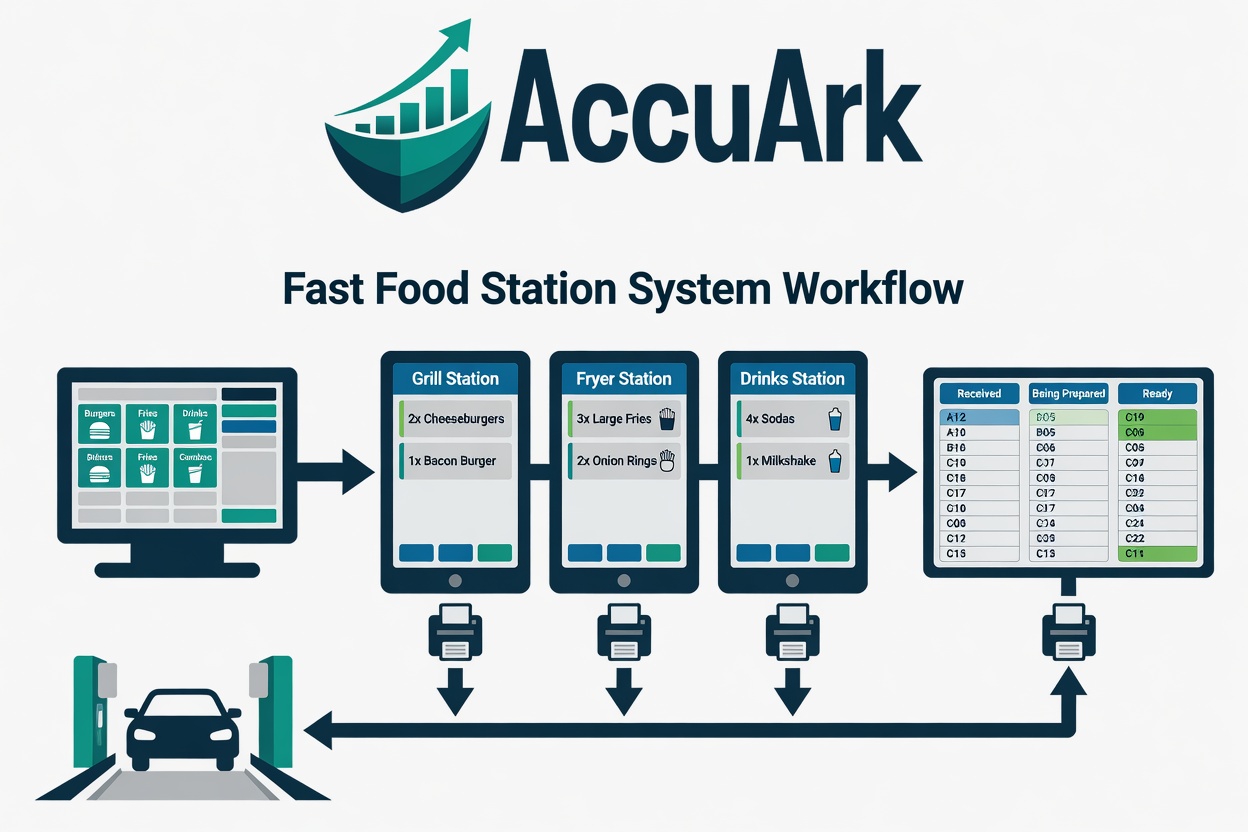
From the counter to the kitchen to the customer — AccuArk connects every step of your fast food operation. Take orders at the counter or drive-through, route them automatically to the right kitchen stations, track preparation in real time, and show customers their order status on a wall-mounted display. All without extra monthly fees for each module — every feature is included.
Built for Fast-Paced Food Businesses
From burger joints to food trucks — any business that needs speed, accuracy, and kitchen coordination.
Burger & Fries
Fast food chains and independent burger joints.
Fried Chicken
Chicken shops, wing houses.
Coffee Shops
Cafes with food prep areas.
Pizza Shops
Takeout and delivery pizza.
Food Trucks
Mobile food service.
Sub & Sandwich
Sub shops, delis, wraps.
Ice Cream & Desserts
Dessert shops with custom orders.
International Fast Food
Shawarma, tacos, sushi rolls.
Everything Your Kitchen Needs — Built In
From order entry to customer notification, every component works together out of the box.
Visual Menu Screen for Speed
Your counter staff sees a clean, visual grid of your menu items organized by category — tap to add, tap to customize. No memorizing item codes, no scrolling through long lists. The Menu Screen is designed for speed: large touch-friendly buttons, instant search, and a running order total always visible.
- Category browsing with color-coded buttons — tap a category to see its items, with subcategory breadcrumb navigation and a back button
- Item search by name, barcode, or SKU with instant results as you type
- Favorites bar — pin your top-selling items for one-tap ordering, configurable per machine
- Modifiers and customizations — extra cheese, no pickles, substitute bun — stored as separate line items for full kitchen ticket detail
- Order sidebar with running items, quantities, prices, subtotal, tax, and total — updates in real time
- Order types — Counter, Drive-Through, Takeout, Delivery, or any custom types you define
- Location tags — tag orders with identifiers like Drive-Through Lane 1 or Window Pickup
- Daily order numbers that reset at midnight — customers and kitchen use this number, not the internal invoice ID
- Barcode scanner support — scan and items are added instantly or the modifier screen opens automatically
- Cash payment processed directly on the Menu Screen; card and other methods open the standard payment chooser
- Grid or list layout — configurable per business in Station Settings
- Price display toggle — optionally hide prices on staff-facing screens
Automatic Kitchen Ticket Routing
When an order is sent to the kitchen, AccuArk automatically routes each item to the correct printer based on configurable rules. Burgers go to the grill printer, fries go to the fryer printer, drinks go to the beverage station — all from a single order, all automatically.
- Category-based routing — assign each item category to a station printer, configure once, works for every order
- Item-level overrides — send a specific item to a different printer than its category (e.g., Milkshake to Ice Cream Station instead of Beverages)
- Per-machine hardware mapping — each ordering machine maps logical printers to specific physical devices
- Test and Diagnose buttons for each printer — no more guessing if the printer is connected
- ESC/POS support for thermal receipt printers or standard Windows GDI printing
- Configurable copies per ticket — e.g., 2 copies for the grill station
- Print queue with automatic retry — failed jobs visible in Print Queue Viewer for manual retry
- Void tickets — automatically printed to the appropriate station when items are removed after sending
- Reprint — kitchen staff can reprint any ticket from the Station Screen, marked with REPRINT header
Kitchen Display System
Replace paper tickets with a real-time digital display. The Station Screen shows incoming orders as color-coded cards that kitchen staff can tap to update status. Mount a screen in each preparation area and they will see only the orders relevant to them.
- Order cards showing order number, type, location tag, customer name, elapsed time, and items with color-coded status
- Configurable status workflow — Pending (gray) to In Preparation (blue) to Ready (green) to Delivered (dark green)
- Tap to advance items to the next status; right-click or long-press to jump directly to any status
- Bump All — one tap marks every item on an order card as ready
- Rush / Priority — flag orders with a red border, sort to front, with configurable permission levels
- Recall completed orders from the last 30 minutes and undo completion
- Aging alerts — yellow border at warning threshold (default 5 min), red pulsing border at critical (default 10 min)
- Sound alerts — configurable chimes for new orders, aging warnings, and rush/priority orders
- Adaptive polling — fast during busy periods (5 sec), slows when idle (30 sec), instantly resumes on activity
- Order type filtering — each screen shows only specific order types; no filter means show all
- Configurable columns (1-10) with auto-fit option
- Form swap — switch between Menu Screen and Station Screen with one click
Customer Order Status Board
Mount a screen facing your customers and they can track their own orders in real time. No more shouting order numbers or customers crowding the counter asking "is my order ready?" The board updates automatically and can even announce orders by voice.
- Status columns — Received (gray), Being Prepared (blue), Ready for Pickup (green) with customer-friendly labels you configure
- Order cards showing order number (large, readable from distance), customer name, order type, location tag, and item list
- Estimated wait time — automatically calculated from the rolling average of the last 20 completed orders
- Voice announcements — "Order 47 is ready" using Windows text-to-speech, no extra hardware needed
- Sound chime when any order becomes ready, independent of voice
- Business branding — display your name, logo, and scrolling promotional message
- Dark theme — professional dark background with high-contrast text, readable from 20+ feet
- Order type filtering — lobby board shows counter orders, drive-through board shows only drive-through
- Auto-removal — orders disappear when they reach a final status like Delivered or Picked Up
Fullscreen Kiosk Mode
Lock any screen into fullscreen mode. No menus, no taskbar, no accidental alt-tabs. Perfect for customer-facing displays, kitchen screens, and dedicated ordering terminals.
- Per-machine setting — enable on any machine, launches station forms fullscreen with TopMost
- Admin-protected exit — exiting requires manager authorization, regular staff cannot accidentally close
- Auto-launch on login — set the machine startup screen and the form launches automatically in fullscreen
- Works on any display — dedicated monitors, wall-mounted TVs, touchscreen kiosks, or regular PCs
Complete Configuration Control
Every aspect of the station system is configurable per machine and per business. No one-size-fits-all defaults — adapt the system to your exact workflow.
- Order types — define your own: Counter, Drive-Through, Takeout, Delivery, Catering, or any custom type
- Location tags — define labels: Lane 1, Lane 2, Window, Table, Counter A, Counter B
- Status workflow — define as many or as few statuses as you need, each with name, color, sort order, and flags
- Customer-facing labels — map internal statuses to customer-friendly text on the Customer Board
- Station settings — business-wide defaults for printer behavior, void display, price visibility, layout, and queue expiry
- Per-machine Stations tab — 3 sub-tabs covering printer assignments, screen settings, board settings, polling, aging, sounds, and filters
Real Workflow Scenarios
See how the Station System handles everyday situations in a fast food operation.
Counter Service — Order to Pickup in Under 3 Minutes
A customer walks up to the counter. Staff taps through the Menu Screen, sends to kitchen. The kitchen prepares it, bumps to Ready. The customer sees their status on the board and picks up.
- Customer approaches counter
- Staff opens Menu Screen, selects Counter order type
- Taps: Burgers, Classic Burger, Sides, Large Fries, Drinks, Cola
- Burger routes to Grill Printer, Fries to Fryer Printer, Cola to Drink Station
- Kitchen staff sees Order 23 — Counter on Station Screen
- Grill cooks the burger, taps item to Preparing, then to Ready
- When all items ready, staff taps Bump All
- Customer Board updates: Order 23 moves to Ready for Pickup
- Voice announces: "Order 23 is ready"
- Customer picks up food — order auto-removes from board
Drive-Through — Fast Lane, No Confusion
Drive-through orders follow the same system but are tagged differently. The kitchen sees them clearly, and a separate display shows only drive-through orders.
- Staff at drive-through window opens Menu Screen, selects Drive-Through order type
- Tags order with Lane 1 location tag
- Takes order, sends to kitchen
- Kitchen sees Order 24 — Drive-Through — Lane 1 on Station Screen
- Pickup window has a separate Customer Board filtered to Drive-Through only
- When order is ready, drive-through window sees it immediately
- Customer handed food at window; order completed
Split Orders Across Multiple Prep Stations
A single order contains items from multiple categories. The system splits and routes automatically — each station sees only their items.
- Classic Burger routes to Grill Station printer + Grill Station screen
- Chicken Wings route to Fryer Station printer + Fryer Station screen
- Large Fries route to Fryer Station (same station as wings)
- Milkshake routes to Drink Station (overridden from Beverages because it is a blended item)
Priority Order — Skip the Queue
When an order needs to jump the line, the kitchen lead flags it as Rush. It moves to the front on all screens with a red border and priority sound.
- Order is placed normally
- Kitchen lead sees the order on Station Screen
- Taps the Rush button on the order card
- Order card gets a red border and moves to the front
- Priority sound plays on all station screens
- Kitchen prioritizes this order
- When ready, rush indicator carries through to Customer Board
Printer Goes Down — No Lost Orders
If a printer jams or goes offline, orders are not lost. The Station Screen keeps showing orders while the print queue holds failed jobs for retry.
- Orders continue being placed at the counter
- Grill printer items go to the Print Queue with failed status
- Manager opens Print Queue Viewer, sees failed jobs
- Uses Diagnose button to check the printer — "Not responding"
- Fixes the paper jam, clicks Retry Failed
- All queued tickets print at once
- Station Screen was showing orders the entire time (pulls from database, not printer)
Customer Changes Their Mind
When a customer removes an item after the order was already sent to the kitchen, the system handles it automatically.
- Staff removes Large Fries from the order on the Menu Screen
- System sends a VOID ticket to the Fryer Station: "VOID 1x Large Fries — Order 23"
- Station Screen updates: fries item disappears from the order card
- Kitchen staff sees the void ticket and stops preparing fries
How to Set Up Your Station System
From zero to a fully connected kitchen in under an hour. Here is the setup sequence.
Quick Setup Guide
- Define Order Types: Business menu, Order Types (Counter, Drive-Through, Takeout, Delivery)
- Define Location Tags: Business menu, Location Tags (Lane 1, Lane 2, Window, Table)
- Define Workflow: Business menu, Station Workflow (Pending, Preparing, Ready, Delivered)
- Map Customer Labels: Same screen, Customer-Facing Labels tab (Preparing = "Being Made")
- Create Printers: Business menu, Station Printers (Grill, Fryer, Drink Station)
- Create Screens: Business menu, Station Screens (Grill Display, Fryer Display)
- Configure Routing: Business menu, Station Routing, assign categories to printers and screens
- Configure Machines: POS Machines, each machine, Stations tab, assign hardware printers, select screens, set filters
- Set Startup Screens: Each machine, Startup Screen = Menu Screen (ordering) or Station Screen (kitchen) or Customer Board (customers)
- Enable Kiosk Mode: For kitchen and customer displays — check Kiosk Mode on machine settings
Suggested Hardware
| Role | Hardware |
|---|---|
| Counter Ordering | Touchscreen terminal or tablet |
| Drive-Through | Touchscreen terminal + headset |
| Kitchen Display | Wall-mounted monitor + mini PC |
| Customer Board | Wall-mounted TV + mini PC |
| Station Printer | Thermal receipt printer (ESC/POS) |
| Expo Station | Large monitor + mini PC |
Ready to Streamline Your Kitchen?
Every feature described above is included in every AccuArk plan. No kitchen display add-on, no printer module upgrade, no per-station fees. Start your 7-day free trial today and have your kitchen connected in under an hour.