Full-Service Restaurant Management from Table to Kitchen
AccuArk handles the unique demands of sit-down dining: table assignments, multi-course ordering with rounds, kitchen coordination across stations, real-time status tracking, and customer-facing order boards. Your servers take orders at the table, courses are sent to the kitchen in rounds, and the kitchen sees exactly what to prepare and when.
Built for Sit-Down Dining
From fine dining to fast-casual — any restaurant that needs table service, course timing, and kitchen coordination.
Fine Dining
Multi-course restaurants with complex workflows.
Casual Dining
Family restaurants, bistros, gastropubs.
Breakfast & Brunch
Diners, brunch spots with mixed kitchen stations.
International Cuisine
Sushi, Thai, Indian — each with unique prep areas.
Bar & Grill
Restaurants with full bar service.
Steakhouses
Precision timing on expensive cuts.
Cafes & Bakeries
Coffee + pastry with separate prep.
Hotel Restaurants
Hotel dining rooms, room service.
Built for Full-Service Dining
Course-by-course ordering, multi-station coordination, and table management — all working together.
Send Courses to the Kitchen in Rounds
Fine dining and casual restaurants do not send everything at once. Starters go first, then entrees, then desserts. AccuArk supports multi-round ordering: your server takes the full order, then sends each course to the kitchen as a separate round.
- New Round button — send current items to station printers and screens as a numbered round, then keep the order open for more
- Round tracking — the order sidebar shows the current round number so the server always knows where they are
- Station Screen round display — kitchen sees each round as it arrives, with items distinguished by round number
- Independent station routing per round — Round 1 (appetizers) goes to Cold Prep; Round 2 (entrees) goes to Grill and Saute
- No limit on rounds — send as many rounds as needed, add items throughout the meal
Table Identification with Location Tags
Tag every order with where the customer is sitting. Location tags appear on kitchen tickets, station screens, and the customer board.
- Customizable location tags — define your own: Table 1-20, Patio A-D, Bar Seats 1-8, Private Room, Terrace
- Visible everywhere — when a server tags an order with "Table 7 - Patio", the kitchen sees it on the ticket and the screen
- Order type + location tag together — an order can be Dine-In (order type) at Table 12 (location tag), both appear on all outputs
Coordinated Multi-Station Kitchen
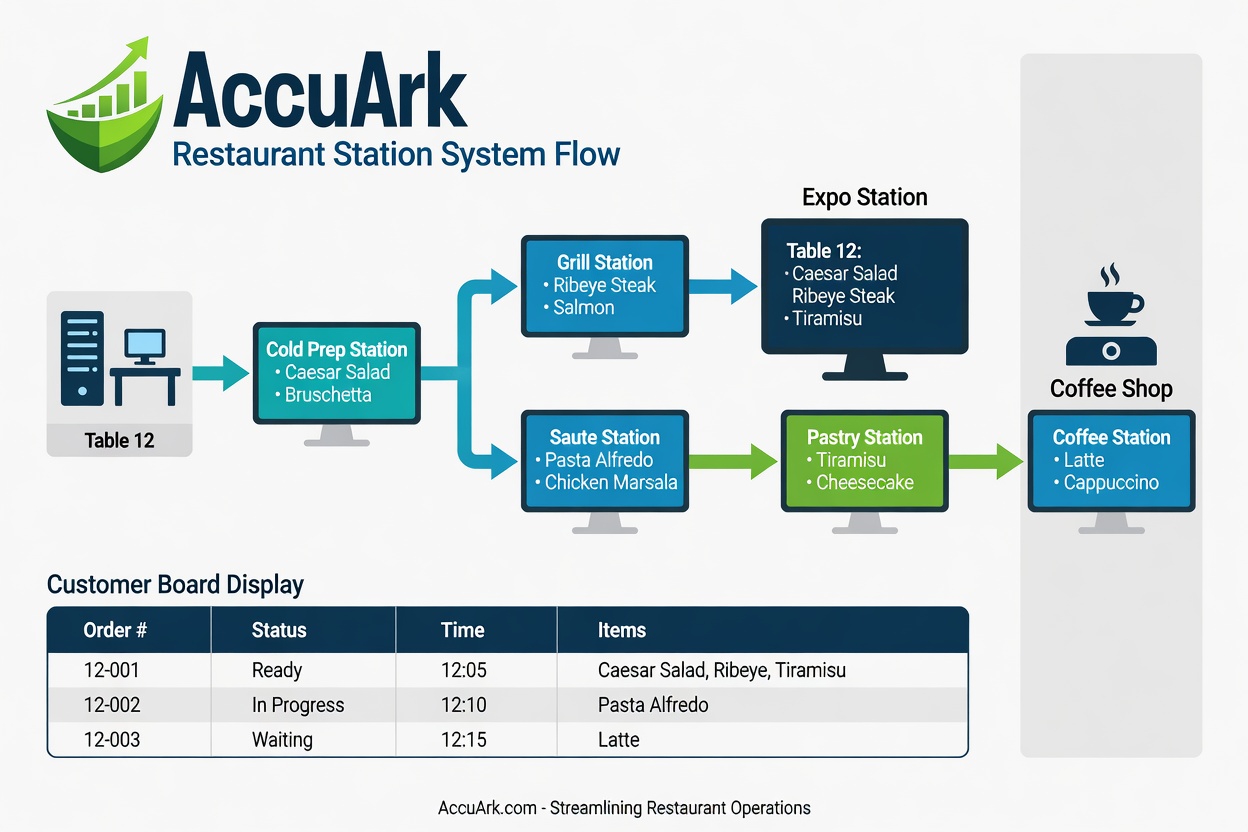
A restaurant kitchen typically has multiple stations: grill, saute, cold prep, pastry, bar. AccuArk routes each item to the correct station and helps coordinate timing across stations for simultaneous plating.
- Station printers — each station has its own printer: Grill, Saute, Cold Prep, Pastry, Bar with automatic routing
- Station screens — each station has its own display showing only their items
- Expediter (expo) station — run a screen with no filter to see ALL items across all stations for coordination
- Category-based routing — Appetizers (Cold) to Cold Prep, Steaks to Grill, Pasta to Saute, Desserts to Pastry, Cocktails to Bar
- Item-level overrides — a Grilled Caesar Salad is in Salads but needs the grill, override its routing individually
Server Takes Orders at the Table
The server uses a tablet or terminal running the Menu Screen. They browse the visual menu, add items with modifiers, assign the table, and send to the kitchen.
- Visual menu grid with categories — browse Appetizers, Entrees, Desserts with large touch-friendly buttons
- Modifiers for cooking preferences — Medium Rare, No Onions, Extra Sauce — stored as line items for the kitchen ticket
- Set order type (Dine-In) and location tag (Table 7 - Patio) before sending
- Send to Kitchen sends the current round; New Round keeps the order open for the next course
- When the table is done, tap Payment to collect — cash or card
Order Tracking for Dine-In Customers
For restaurants with counter pickup (fast-casual dining), the Customer Board shows order status. For full-service restaurants, the board can be used in the kitchen for expo coordination instead.
- Fast-casual use — customers order at counter, sit down, and watch the board for their order number
- Kitchen expo use — mount in the kitchen pass/expo area showing all pending orders and their completion status
- Bar area — a board behind the bar shows drink orders from all stations
- Voice announcements and chimes when orders are ready
- Dark theme with high-contrast text, readable from 20+ feet away
Kiosk Mode & Full Configuration
Lock kitchen and customer displays into fullscreen kiosk mode. Configure every aspect of the station system per machine and per business.
- Kiosk mode — fullscreen lock with admin-protected exit, auto-launch on login
- Custom order types — Dine-In, Takeout, Bar, Catering, or any type you define
- Configurable status workflow — define statuses, colors, sort order, and customer-facing labels
- Per-machine settings — each terminal has its own printer assignments, screen configuration, polling, aging thresholds, and filters
- Aging alerts — yellow at warning threshold, red pulsing at critical, with configurable sound alerts
Real Restaurant Scenarios
See how the Station System handles the complexities of full-service dining.
A Complete Dinner Service — Table of Four
From greeting to check — a full multi-course dinner with drinks, appetizers, entrees, and dessert, each sent as a separate round.
- Host seats party at Table 7
- Server opens Menu Screen, selects Dine-In, tags Table 7
- Takes drink order: 2x House Wine, 1x Craft Beer, 1x Sparkling Water
- Sends to kitchen — Drinks route to Bar Printer + Bar Screen
- Bar prepares drinks, marks Ready on Station Screen
- Runner sees Table 7 — Drinks Ready and delivers
- Server returns for appetizers: Bruschetta, Soup of the Day
- Taps New Round — Round 2 sends to Cold Prep and Soup Station
- Server takes entree order: 2x Ribeye, 1x Salmon, 1x Pasta
- Taps New Round — Round 3: Ribeyes to Grill, Salmon to Grill, Pasta to Saute
- Grill and Saute stations coordinate timing using Station Screen
- All entrees ready simultaneously — Runner delivers
- Server takes dessert order: Tiramisu, Coffee x 2
- Taps New Round — Round 4: Tiramisu to Pastry, Coffee to Bar
- Dessert and coffee served
- Server taps Payment — collects check
Kitchen Stays Organized During Peak Hours
15 tables simultaneously, multiple servers, and the kitchen stays organized with aging alerts, priority flags, and expo coordination.
- Multiple servers sending orders from 15 different tables
- Each station screen shows only their items, sorted by age (oldest first)
- Orders aging past 5 minutes turn yellow; past 10 minutes turn red
- Kitchen lead flags a VIP table order as Rush — jumps to front
- Expo station screen shows all orders across all stations
- When all items for a table are Ready, expo calls for runner
- Each table order is independently tracked through the full workflow
Item Runs Out Mid-Service
When the kitchen runs out of an ingredient, the item is marked unavailable instantly across all terminals — no more taking orders for items you cannot serve.
- Kitchen runs out of salmon
- Manager marks Grilled Salmon as Unavailable in the inventory
- On all Menu Screens, salmon appears grayed out with Unavailable label
- Servers immediately know not to offer it
- No orders for salmon reach the kitchen
- When restocked, manager sets it back to Available — instant across all terminals
Two Dining Areas, One Kitchen
A restaurant with a main dining room downstairs and a rooftop terrace upstairs — both served by the same kitchen, differentiated by location tags.
- Restaurant has a main dining room (downstairs) and a rooftop terrace (upstairs)
- Both areas use the same kitchen
- Location tags differentiate: "Table 1-15 Main" and "Table 1-10 Terrace"
- Kitchen sees all orders on one screen, with table location clearly marked
- Runners know which staircase to take based on the tag
Drinks and Food Arrive Together
When a customer orders a cocktail and a steak, the bar and grill work independently but the expo station coordinates delivery timing.
- Customer orders a cocktail and a steak
- Cocktail goes to Bar Printer + Bar Screen
- Steak goes to Grill Printer + Grill Screen
- Bar finishes cocktail in 3 minutes, marks Ready
- Grill needs 12 minutes for the steak
- Expo screen shows: Table 7 — Cocktail Ready, Steak Preparing
- Runner delivers cocktail immediately
- When steak is ready, runner delivers it
Kitchen Loses a Ticket
Paper ticket falls behind the line during a rush. The Station Screen has the order — reprint or recall with a tap.
- Paper ticket falls behind the line during a rush
- Cook realizes they are missing Table 9 order
- On Station Screen, clicks Reprint on Table 9 order card
- New ticket prints with REPRINT header
- Cook prepares the order
- If the order was accidentally bumped off: click Recall, find it in the last 30 minutes, undo completion
How to Set Up Your Station System
From zero to a fully connected kitchen in under an hour. Here is the setup sequence.
Quick Setup Guide
- Define Order Types: Business menu, Order Types (Counter, Dine-In, Takeout, Delivery)
- Define Location Tags: Business menu, Location Tags (Table 1-20, Patio A-D, Bar Seats 1-8)
- Define Workflow: Business menu, Station Workflow (Pending, Preparing, Ready, Delivered)
- Map Customer Labels: Same screen, Customer-Facing Labels tab (Preparing = "Being Made")
- Create Printers: Business menu, Station Printers (Grill, Saute, Cold Prep, Pastry, Bar)
- Create Screens: Business menu, Station Screens (Grill Display, Saute Display, Expo, Bar)
- Configure Routing: Business menu, Station Routing, assign categories to printers and screens
- Configure Machines: POS Machines, each machine, Stations tab, assign hardware printers, select screens, set filters
- Set Startup Screens: Each machine, Startup Screen = Menu Screen (ordering) or Station Screen (kitchen) or Customer Board (expo)
- Enable Kiosk Mode: For kitchen and expo displays — check Kiosk Mode on machine settings
Suggested Hardware
| Role | Hardware |
|---|---|
| Server Ordering | Tablet or touchscreen terminal |
| Kitchen Display | Wall-mounted monitor + mini PC |
| Expo Station | Large monitor + mini PC |
| Customer Board | Wall-mounted TV + mini PC |
| Station Printer | Thermal receipt printer (ESC/POS) |
| Bar Display | Monitor behind bar + mini PC |
Ready to Streamline Your Kitchen?
Every feature described above is included in every AccuArk plan. No kitchen display add-on, no printer module upgrade, no per-station fees. Start your 7-day free trial today and have your kitchen connected in under an hour.